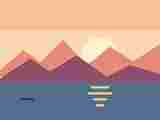
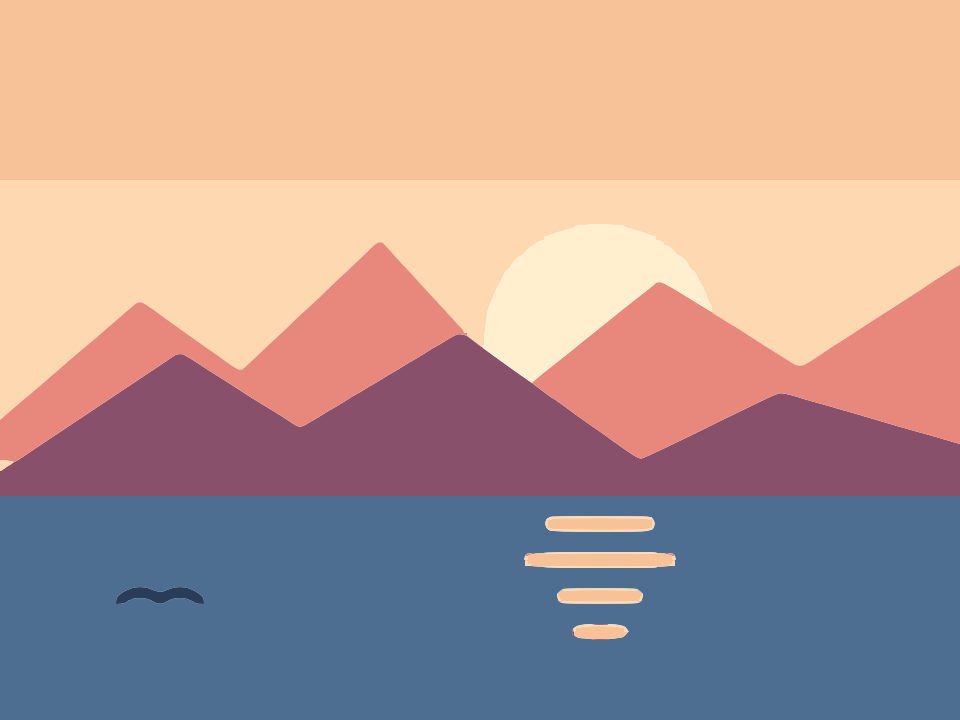
 Before · JPGAfter · SVG · 30 shapes
What it means to vectorize an image
Most images you come across are raster images, also called bitmaps: a fixed grid of coloured pixels. PNG, JPG, WebP, GIF and BMP all work this way. Enlarge one far enough and you see the grid, with blurry or jagged edges.
A vector image stores shapes instead of pixels. Each shape is an outline made of straight lines and curves, plus a fill colour. Because the outline is described mathematically, the browser or printer redraws it crisply at whatever size you ask for. SVG is the standard vector format on the web and is accepted by nearly every design, print and cutting tool.
To vectorize an image, or convert an image to vector, software has to look at the pixels, decide where one area ends and the next begins, and draw a path along each boundary. This is called tracing. Raster to vector conversion is never a simple format change: renaming a file or wrapping a bitmap inside an SVG still leaves you with pixels. If the difference is new to you, Raster vs vector explains it in more depth.
How to vectorize an image in four steps
- Drop your image on the converter above, click to choose a file, or paste it from the clipboard with Ctrl+V (Cmd+V on a Mac). PNG, JPEG, WebP, GIF and BMP are accepted.
- Wait a moment while it traces. The converter here starts in Colour mode with 8 colours, a sensible default for most graphics.
- Judge the result. If you want fewer or more colours, a one-colour trace, or finer control over detail, open the same image in the full editor.
- Press Download SVG to save the vector file, or Copy SVG to paste the markup into code, Figma, Inkscape or another tool.
The image is never uploaded. Tracing runs in a Web Worker inside your tab, there is no account to create, and once the page has loaded the tracer keeps working without an internet connection.
Which images vectorize well
Tracing turns areas of colour into flat filled shapes. The closer your image already is to that, the better the vector version will be.
| Image type | How well it traces | Notes |
|---|---|---|
| Logos, wordmarks, icons | Excellent | Flat colours and hard edges; corners stay sharp. |
| Line art, ink drawings, scans | Excellent | Black & white mode with the automatic threshold handles most scans. |
| Signatures and handwriting | Very good | Clean up paper texture with Blur and Ignore less than. |
| Flat illustrations, stickers, clip art | Very good | Set the colour count to roughly the colours you see. |
| Screenshots of simple graphics | Good | Crop to the graphic first; small text may need retyping. |
| Photos | Stylised only | Becomes flat poster or stencil art, not a realistic copy. |
The example above is a flat-colour illustration of a lake at sunset. It traces to 30 shapes with 577 nodes, and the SVG weighs about 14.8 KB.
Black & white or colour vectorizing
Image Tracer has two modes, and choosing the right one is the biggest single decision.

Black & white
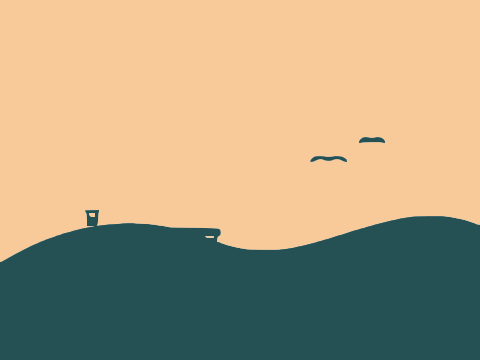
Every pixel is classified as dark or light using a Threshold, which starts at an automatic value calculated for each image. Only the dark parts become shapes. This mode gives the cleanest edges and the smallest files, and it suits anything that is essentially one colour: text, logos, drawings, signatures, silhouettes and cut files. Invert image flips it for light artwork on a dark background, and Blur smooths noisy sources before the threshold is applied.
Colour
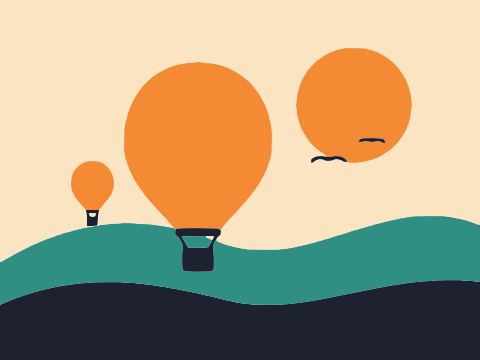
The image is reduced to a set number of flat colours (2 to 32, default 8), and each region of colour becomes its own path. With the default Output of Separate shapes, neighbouring regions share exact boundaries, so there are no gaps or overlaps. Stacked layers instead produces one path per colour, stacked from dark to light. Remove background drops the regions touching the image border.
Still unsure? Black & white vs colour tracing compares the two with examples.
Image to vector converters for specific jobs
This page is the general-purpose image to SVG tool. If you know what you are working with, these pages start with settings suited to it and explain the details that matter for that kind of image:
- PNG to SVG: lossless files, with transparent areas kept empty.
- JPG to SVG: how to deal with compression artefacts.
- WebP to SVG: images saved from websites, including transparent WebP.
- Photo to SVG: turning pictures into flat poster and stencil art.
- Logo to vector: crisp corners and a separate path per letter.
- Signature to SVG: a clean, scalable signature from a photo or scan.
- Line art to vector: drawings, sketches and inked illustrations.
- Image to SVG for Cricut: cut files for vinyl and paper crafts.
- SVG for laser cutting: closed outlines for engraving and cutting.
The settings that control detail
Whichever mode you use, four tracing settings shape the final paths. All of them are in the editor, and the documentation covers each in full.
- Ignore less than (default 2 px²) throws away specks smaller than this area. Raise it to clean up dust, noise and stray pixels.
- Smoothness ranges from 0, fully polygonal, to 1.34, very rounded, with 1 as the default. Go lower for geometric art and pixel art, higher for organic shapes.
- Curve optimisation (default 0.2) sets how loosely curves are fitted. Higher values mean fewer nodes and a lighter file.
- Max size scales big images down before tracing: 1024, 2048 (default), 4096 px or full resolution.
For recommended starting values by image type, see Best settings for image tracing.
What the vector file contains
You get a plain SVG. Each visually separate shape is a <path> with its own fill colour and its own holes, drawn with straight lines and quadratic Bézier curves and using fill-rule="evenodd". The width, height and viewBox equal the traced pixel size. There are no embedded bitmaps, scripts or gradients.
Because every shape is separate, the file is easy to work with afterwards: recolour one region, delete the background, or move a letter in Illustrator, Inkscape, Affinity Designer or Figma. Corners between straight edges are kept exact, so geometric shapes do not come out rounded. Image Tracer saves SVG only; if you need PDF, EPS or DXF, open the SVG in a vector editor and export from there.
Tips for a better trace
- Start from the best source. The biggest, sharpest version of an image always traces better than a small or recompressed copy.
- Crop first. Anything you do not want in the SVG adds shapes and nodes.
- Match the colour count to the image. Count the flat colours you see and set the number to that. More is not automatically better.
- Look at the Processed image. In the editor, switch the preview to Processed image to see the mask the tracer is actually following, and use Show points to judge how complex the paths are.
- Use Restore default settings if experiments have gone too far and you want a clean starting point.
Frequently asked questions
How do I vectorize an image for free?
Drop the image on the converter at the top of this page and download the SVG. Image Tracer is free and open source, with no account, no watermark and no file limits.
Is my image uploaded when I convert it to vector?
No. The image is read and traced locally in your browser using a Web Worker. Nothing is sent to a server, and the tool keeps working offline once loaded.
What file types can I vectorize?
PNG, JPEG, WebP, GIF and BMP. The output is always SVG. SVG files themselves are not accepted as input, since they are already vector.
Does it use AI to vectorize images?
No. Image Tracer uses a deterministic tracing engine inspired by Potrace. It does not invent detail or upscale; it follows the edges in the pixels you give it.
Why does my photo look like a poster after vectorizing?
Tracing produces flat filled shapes, so smooth shading turns into bands of solid colour. That is the nature of raster to vector conversion. Photos work best as deliberately stylised art; see Photo to SVG for tips.
Can I convert a bitmap to vector for printing or cutting?
Yes. The SVG scales to any size without losing sharpness, and closed filled shapes work in cutting and engraving software. For specifics, see the Cricut and laser cutting pages.
Last updated