Quick verdict
Inkscape is a complete vector editor: if you want to trace and then redraw, edit nodes, add text and export to several formats, it is an excellent free choice and has more tracing modes, including centreline tracing and a dedicated pixel-art tracer. Image Tracer is narrower: it does one job, turning a raster image into a clean SVG, and does it in a browser tab with nothing to install and nothing uploaded.
Many people will use both: trace here for speed, then open the SVG in Inkscape to edit it.
Side-by-side comparison
| Image Tracer | Inkscape Trace Bitmap | |
|---|---|---|
| Price | Free, no account | Free |
| Platform / install | Any modern browser, nothing to install | Desktop app for Windows, macOS and Linux |
| Privacy / upload | Traced on your device in the browser; never uploaded. Works offline once loaded | Runs locally on your computer |
| Black & white tracing | Threshold (automatic Otsu by default, with histogram), blur, invert | Brightness cutoff and edge detection single scans (Potrace engine) |
| Colour tracing | 2–32 colours; separate shapes (default) with shared boundaries, or stacked layers; remove background | Multiple scans by brightness steps, colours or greys, with stack and remove background options |
| Other modes | None | Centerline tracing and a Pixel art tab (libdepixelize) |
| Output formats | SVG (download or copy) | Inkscape SVG, plain SVG, PDF, EPS, PNG and more via Save As / Export |
| Editing tools | None built in; preview paths and points | Full vector editor |
| Speed / ease | Drop an image, live preview, download | Import image, open the Trace Bitmap dialog, update preview, apply |
| Licence | Open source | Open source (GNU GPL) |
How the tracing differs
Inkscape's Trace Bitmap (Path > Trace Bitmap) is built on Potrace for its main modes. Single scans turn the image into one path, using brightness cutoff, edge detection, colour quantization, Autotrace or centerline tracing. Multiple scans create one object per brightness step, colour or grey level; they can be stacked on top of each other or not. A separate Pixel art tab uses the libdepixelize library (Kopf–Lischinski algorithm), which is made specifically for low-resolution pixel art.
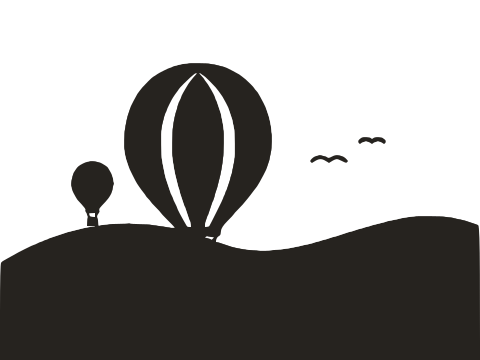
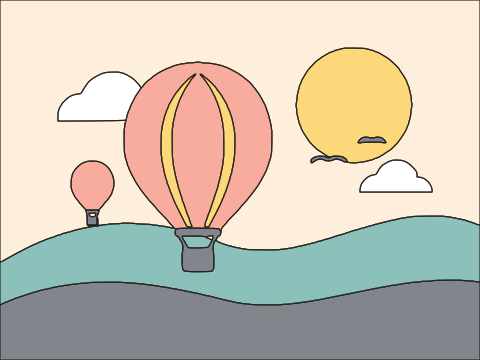
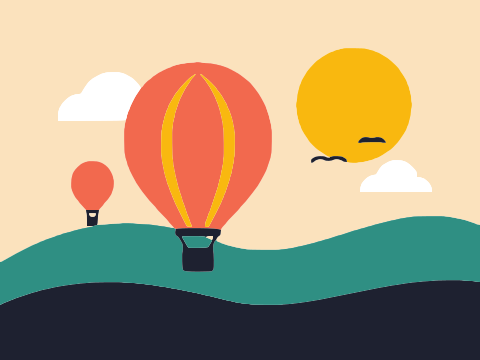
Image Tracer uses its own Potrace-inspired engine (it is not Potrace itself). In Black & white mode it chooses a threshold automatically for each image and shows the histogram. In Colour mode it reduces the image to 2–32 colours and, by default, uses Separate shapes output: each region becomes its own path, holes are true cut-outs, and neighbouring regions share exact boundaries so nothing overlaps and there are no gaps. Stacked layers (one path per colour, dark to light) are available too.
Image Tracer also keeps corners between straight edges sharp and rebuilds anti-aliased corners, which helps with logos, icons and lettering. Smoothness and Curve optimisation let you choose between more detail and fewer nodes.
Where Inkscape is stronger
- A full free editor. Node editing, boolean operations, text, layers, export: everything you need after tracing is in the same app. Image Tracer has no editing tools.
- More tracing modes. Edge detection, centerline tracing for handwriting and line drawings, and a dedicated pixel-art tracer. Image Tracer only produces filled shapes and has no centreline or stroke output.
- More output formats. PDF, EPS, PNG and others in addition to SVG. Image Tracer outputs SVG only.
- Automation. Inkscape has a command line and extensions for scripted workflows. Image Tracer has no batch mode.
- Reference engine. Its main tracing modes use Potrace, a mature and widely studied algorithm.
Where Image Tracer is stronger
- Nothing to install. It opens in a browser tab on any computer, including Chromebooks and machines where you can't install software, and keeps working offline once loaded.
- Privacy by design. Like Inkscape, it works locally: images are traced in the browser and never uploaded.
- Clean colour shapes by default. Separate shapes output gives one path per region with exact shared edges, rather than a stack of overlapping scans you may need to ungroup and tidy.
- Fast feedback. Changing a setting updates the preview automatically, and you can view the processed mask, paths and points. The status line shows shape and node counts.
- Focused. A short list of settings with sensible defaults; if you only need an SVG, there's less to learn.
Who should choose which
Choose Inkscape if
- you want to edit, combine or redraw the traced artwork;
- you need centreline tracing, pixel-art tracing, or PDF/EPS output;
- you're happy to install a desktop app and want a complete free design tool.
Choose Image Tracer if
- you need an SVG quickly from a logo, icon, signature or flat illustration;
- you can't install software or are working on someone else's computer;
- you want colour traces as separate, non-overlapping shapes ready for the web or a cutting machine.
Using both together
Because Image Tracer outputs standard SVG, Inkscape opens it directly with File > Open. Each traced shape is a separate path, so you can select one with a click, change its fill, delete a background region, or use Path tools to combine shapes. This "trace in the browser, edit in Inkscape" workflow is a good fit if you like Image Tracer's colour output but need editing afterwards.
For line drawings where you want filled shapes, see line art to vector; if you need single-line strokes instead, Inkscape's centerline mode is the better tool. For a primer on choosing modes, read black & white vs colour tracing.
Try it
Open Image Tracer and drop in an image: you'll see the traced SVG in a moment, with no install and no upload. If you need to edit it afterwards, open the downloaded file in Inkscape.
Inkscape is a trademark of its respective owners. Image Tracer is an independent project and is not affiliated with or endorsed by the Inkscape project.
Frequently asked questions
Are Image Tracer and Inkscape both free?
Does Image Tracer use Potrace like Inkscape?
Can Image Tracer do centerline tracing like Inkscape?
Can I edit an Image Tracer SVG in Inkscape?
Which is better for pixel art?
Last updated